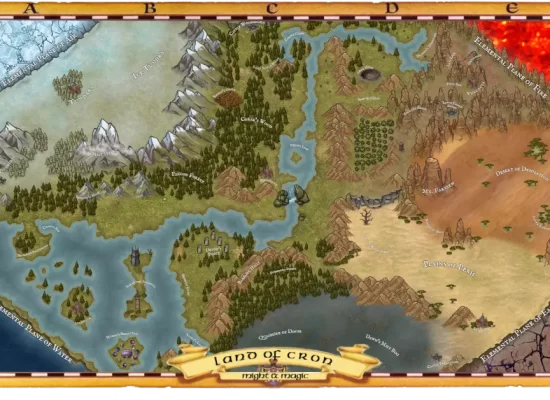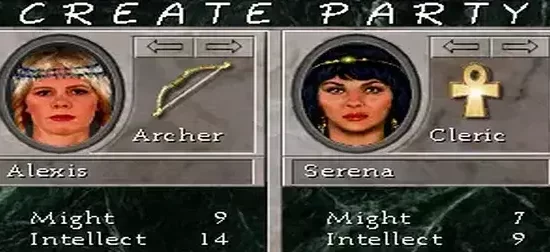
Might and Magic II is of one my favorites in the might and magic series and I have played through it countless times. I love the huge roster of 24 hirelings and the expanded 8 character party set to face huge battles with up to 250 enemies. I have often felt disenchanted by the dated UI which hides most information in menus or sub screens forcing you to toggle back and forth often.. mm2 companion is a love letter to this game.
I have spent much time playing with WhereAreWe? which is a wonderful auto-mapping companion and trainer for might and magic 1-6, among other games.. but I wanted to take on creating my own mm2 companion with a focus on new UI.
Features
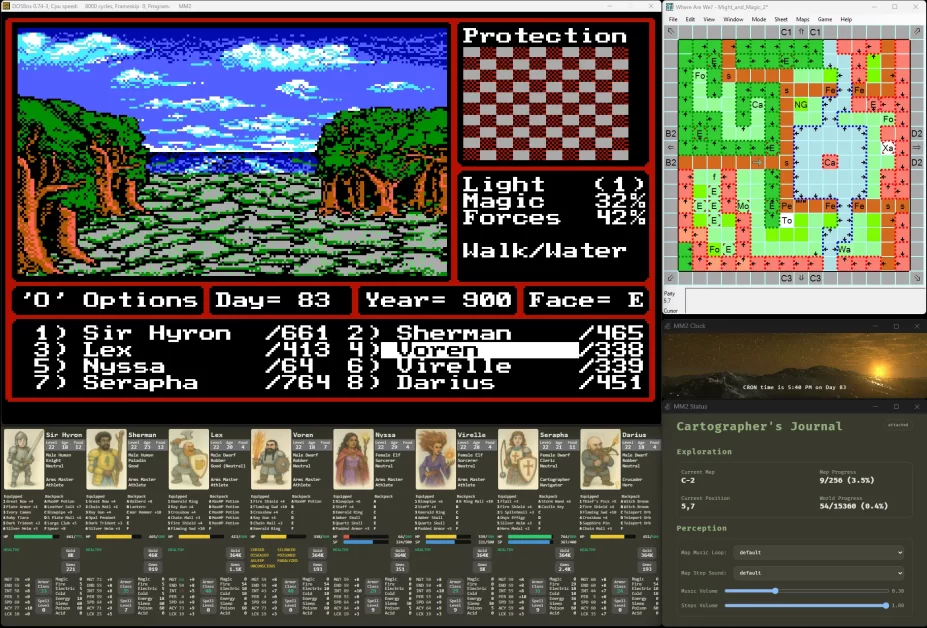
Modular Layout System
- Independantly scaleable and positionable Views that remember placement across sessions.
- Views can be scaled way UP and retain cripsness due to locked aspect system.
- Ideal for displays from 1440p up to 4k.
- Support for multi-monitor setups.
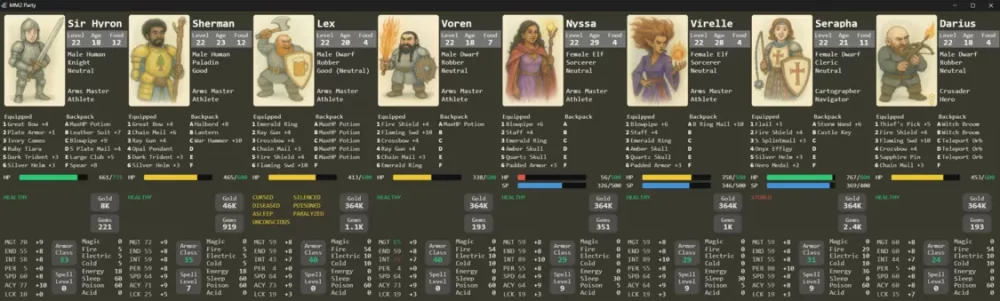
Party View
- Displays your current party and supports swapping in/out characters at the Inn.
- Shows nearly everything about each in-party character in one view, including equipment.
- Players can import custom character portraits for each character or hireling.
- A focus indicator displays which character has focus in battle or while exploring.
- A Spell Helper displays available spells for the character that is casting.
- The Spell Helper displays clues when a spell is not available in the given setting.
- The Spell Helper displays a clue when a spell is already active.
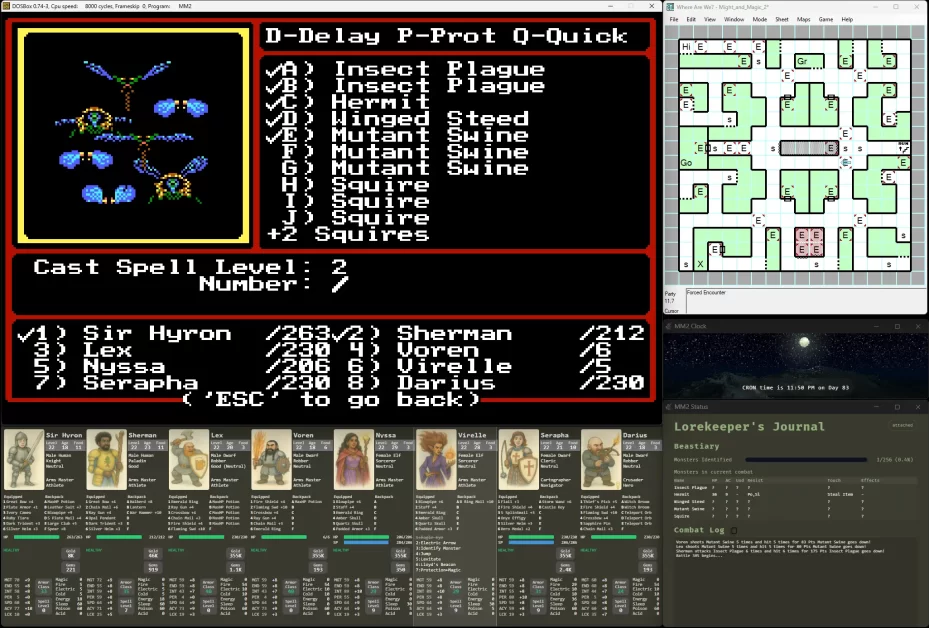
Cartographer’s View (status view not in combat)
- Displays map name and coordinates for the current map the player is on.
- Tracks and displays Exploration Progress for the current map and the world as a whole.
- Allows easy association of your supplied MP3 with each map in the game for looping music.
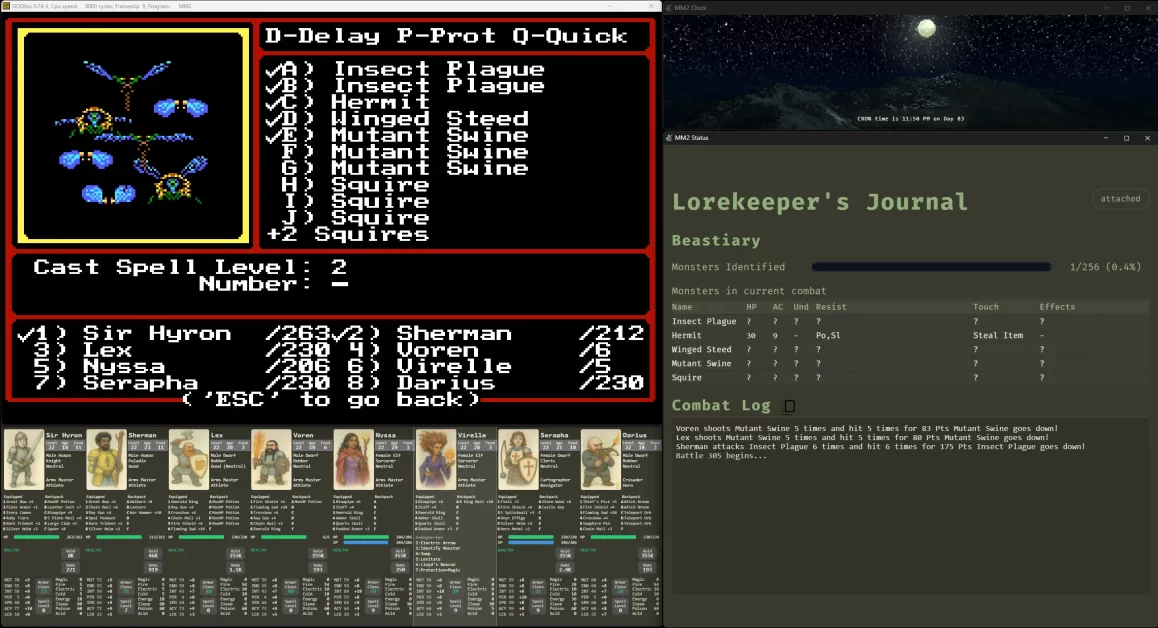
Lorekeeper’s View (status view in combat)
- Tracks and displays Lorekeeper Progress as a percentage of total monsters that have been identified.
- Exposes current combat monster details such as Resistances but only after being identified.
- Lorekeeper view writes to a combat log with support for scroll back and clipboard export.
Time View
- Displays the current Minute and Day in the world of CRON and updates with each step.
- Uses the celestial clock display as is common in the later might and magic games in the series.
mm2 companion Requirements
- Might and Magic II: Gates to Another World – GOG Version
- DOSBox 0.74.2.1 (ships with the GOG game) OR DOSBox 0.74.3 (latest as of this writing)
- Windows 10,11 with Edge Browser.. or Chrome.
- 1440p or greater is ideal for visual clarity unless you want giant views on separate monitors.
Installation Instructions
mm2 companion is zipped here. Unzip the folder on the desktop and run the EXE to start this flow:
- A folder selection window appears requesting the folder that MM2 is installed in and we assume a /DOSBox folder is also there. This is how GOG installs the game. This only happens on first launch.
- The Lastlight Server will load up next in a terminal window.. minimize this or move it aside. Closing the terminal window will shut down the server. R and Shift+R are useful shortcuts that work while the terminal window has focus. R will restore any missing windows (Game, Party, Status, Time). Shift+R will restore missing windows forcing default size and position.
- Game loads up next in the default size and postion.
- Party then Status then Time views loads up next with the default size and position which is determined with math based on your primary desktop resolution. After this initial setup you can drag windows to resize or reposition.. their position and size will be remembered.
- That’s it..
mm2 companion FAQs
- I want to use WhereAreWe? at the same time.. does it work? ANSWER: Yes mm2 companion and wherearewe? can both run at once without any issues. mm2 companion also runs fine without WhereAreWe? as there are no dependancies.
- After first launch.. all I see is a full-screen game window. ANSWER: just hit Alt+Enter to escape full-screen mode.
- I have moved and resized my view windows but I want to go back to defaults. ANSWER: with focus on the command window, press Shift+R to restore default size and placement of all Views.
- I accidentally closed my Party view.. how can I get it back? ANSWER: with focus on the command window, press R to restore any missing windows right where it was when you closed it.
- I want to resize the game window! How? ANSWER: The size is initially determined based on your desktop resolution and some proportion math.. but you can certainly override and set the window in \Config\launcher_config.json file. Just update X, Y, W, H as desired. If make unsafe choices and your game window disappears.. see #3 above.
- How do I add Custom Portraits? ANSWER: In the Party view, click on any portrait and pick a file from your hard drive. The system will try to present a center view and crop into view. For best results use a 2:3 portrait shaped image such as 800×1200. The portrait stays when the character if when swapping charcters in the Inn.
- How do I add my own music.. I want to add the MM6 MP3 files! ANSWER: In the \config folder next to your EXE you will see a \config\music folder. Any MP3 you put here, will show up in the Cartographer View whle in game. While on any given map, use the Select drop-down to associate the MP3 with that map. The music will play on loop while on the map.
- How do I change the step sounds? ANSWER: Similar to the music directions above, find the \config\sounds folder.
- How do I export my Combat Log to my clipboard. While on the Lorekeeper View (in combat) press the Copy icon and the whole combat log will copy to your clipboard. By the end of your playthrough the combat log is likely too large to display in full in the Lorekeeper View, but rest assured the whole log is stored in a JSONL file in \data.
- I have changed my desktop resolution and I want the system to redetermine my default window placements, is this possible? ANSWER: Yes, delete the launcher_config.json file in \config and then press Shift+R with focus on the command window.
more questions.. send me a message: questions.dcc@gmail.com